 LR Appli

The large number in the upper panel is the current speed.
The number shows the true speed even when the analog needle has stopped at the end of its scale. Above the top of the scale the needle stays at its limit and only the number continues to rise.
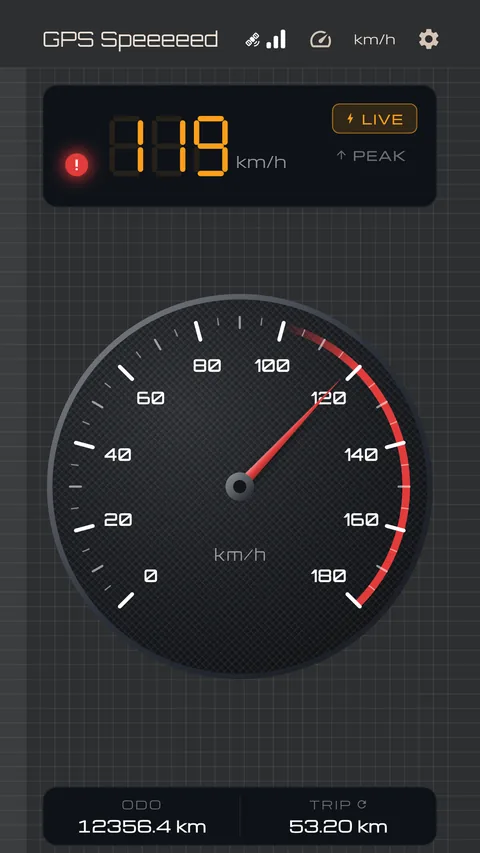
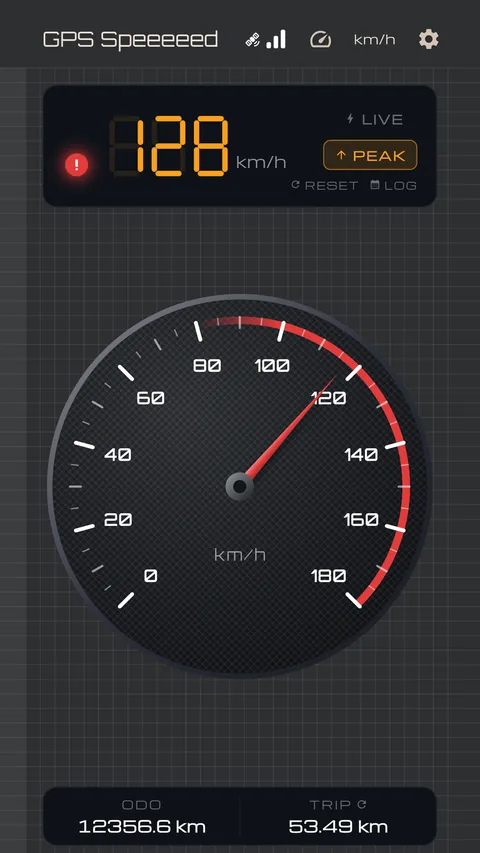
The two buttons at the right switch the display. LIVE shows the current speed; PEAK shows the highest speed recorded so far.
These appear while PEAK is selected. RESET clears the recorded maximum. LOG opens the day-by-day history calendar.
The round lamp to the left of the digital readout. It lights red while the over-speed warning is active.
It does not light while the chime setting is off.
The two figures at the foot of the screen. ODO is the total distance travelled; TRIP is the current leg.
TRIP can be reset by tapping it; a confirmation is shown first. Tapping ODO has no effect. The total distance is set and reset under Data in the settings.
With the unit set to min/km (pace), a RESET button also appears above TRIP. It does the same thing as the tap: the trip distance and the average pace are cleared together.
The three bars at the top right. They show how accurate the current fix is, in three steps: three bars is a healthy reading, fewer means the accuracy is falling off.
The bars light only once satellites are locked, which takes a few seconds from startup. They go dark underground or indoors, where nothing is reaching the receiver.
"Acquiring GPS…" is shown just after startup, or after passing through an area without reception. It clears within a few seconds to a minute where the sky is open.
Held sideways, the meter and the readout are placed side by side. The top bar is not shown in landscape.
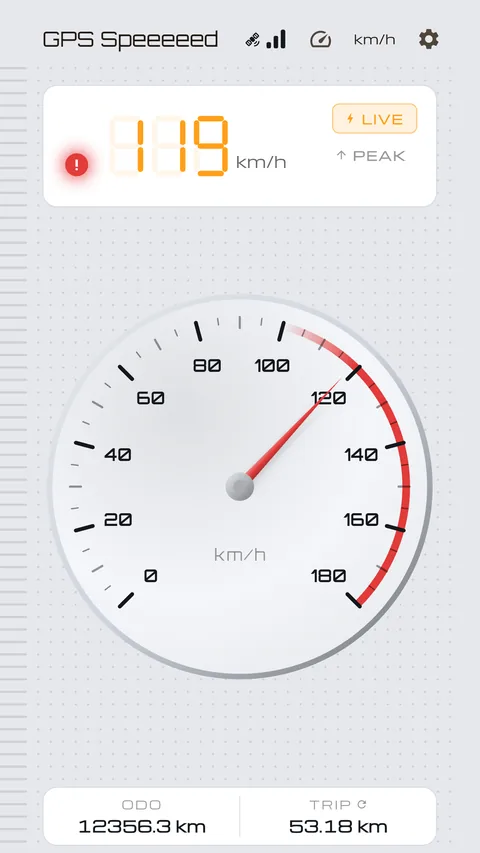
Theme in the settings selects light (a bright background) or dark. Auto follows the device’s own dark mode setting and switches with it.
Colours are stored separately for light and dark, so each theme can be given a scheme of its own.
With this on, the needle sweeps to full scale and back as the app starts, as a car’s instruments do. It runs only until the first fix arrives, and ends once a speed is being shown.
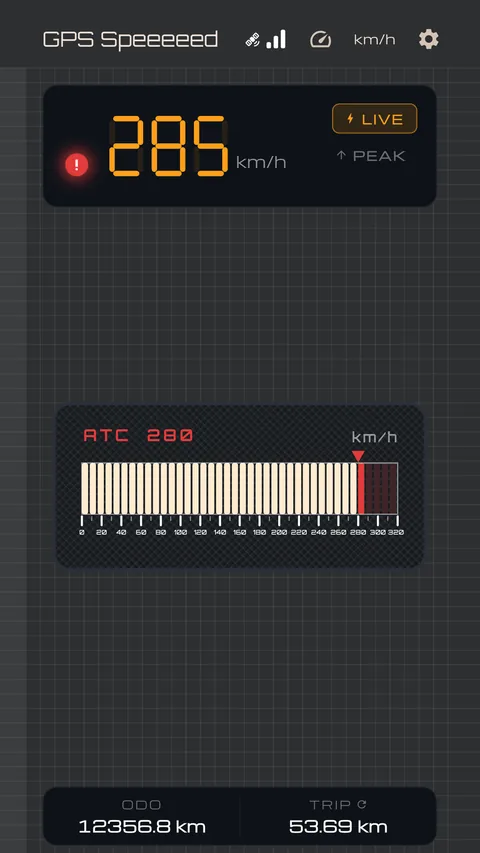
Tap the speedometer icon at the top right. Eight faces are provided:
Car (analog) / LED bar (retro) / Aircraft (airspeed indicator) / Shinkansen (ATC) / Bicycle (cycle computer) / Marine (speed log) / Ring (digital) / Discreet (reading app).
Car (analog) and LED bar (retro) may be used free of charge.
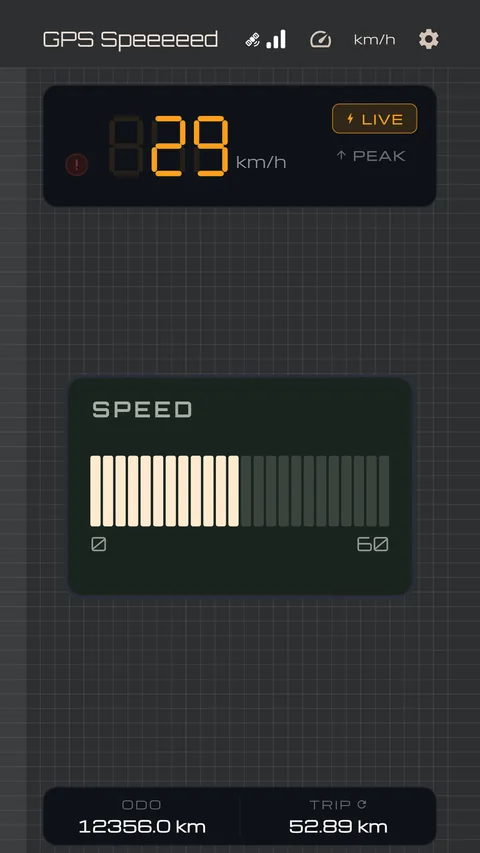
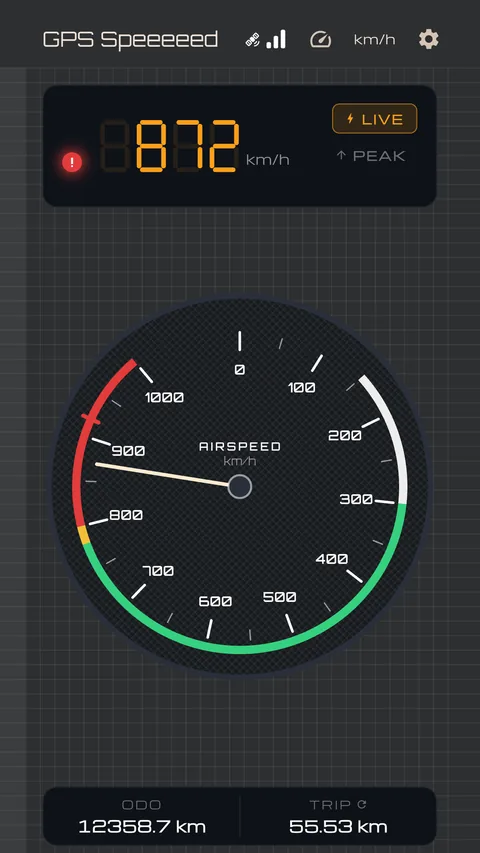
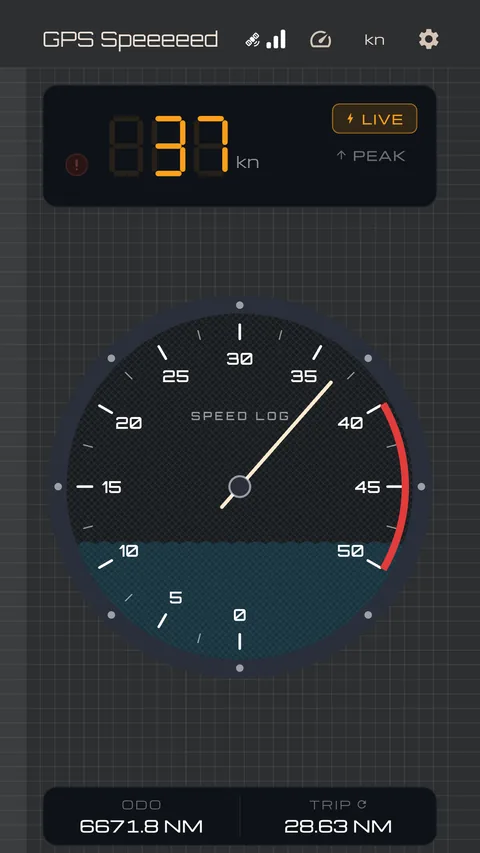

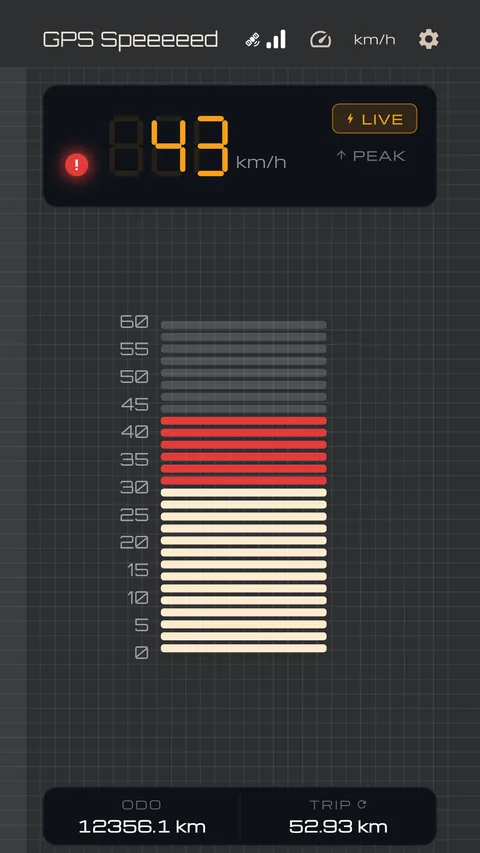
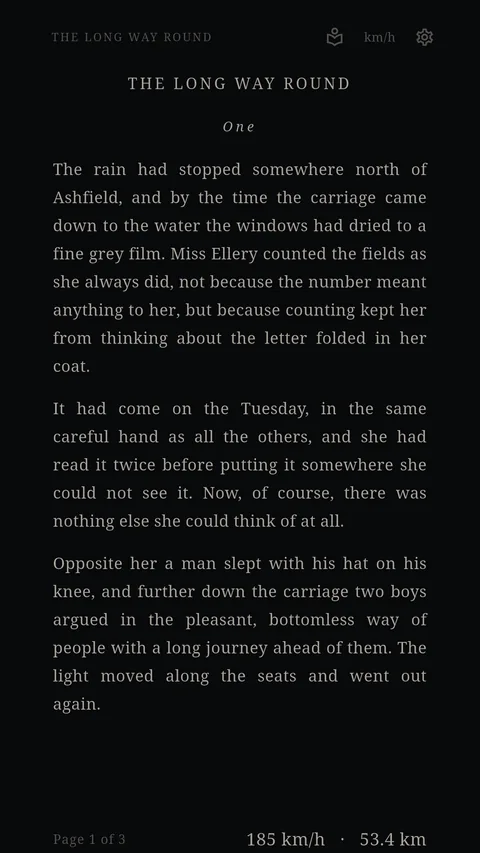
A display for situations where the speedometer should not be apparent to those nearby. The screen takes the appearance of a reading app, with speed and distance shown small, in the position of a page number.
Full-scale speed in the settings selects the highest value the analog scale is marked to, from 10 to 1200 km/h, chosen from the values provided for each unit.
If the value is far above the speeds travelled, the needle moves very little; if it is too low, the needle stops at its limit. Select a value to suit the intended use.

The speed at which the chime sounds cannot be set above the full-scale speed. With a full-scale speed of 180 km/h, the warning speed is also limited to 180 km/h. To use the warning above that speed, change the full-scale speed first.
Out of the box, every face except the car (analog) takes its full-scale speed and chime speed from the car, so that the two values do not have to be set eight times over.
Turning off "Match the car meter", or changing either of the two values, gives that face its own values; from then on it no longer follows the car. Changing the chime speed on the meter itself counts as well.
The chime on/off switch is not part of this and is set per face.
Unless you have chosen a full-scale speed yourself, the app may offer to change it while you travel — either because the needle has been sitting against its stop, or because ten minutes of travelling have gone by with the needle inside the first fifth of the sweep. Choose Change to set it there and then, or dismiss the offer to leave it as it is. It is offered once.
With the link off, the full-scale speed and the speed the chime sounds at are stored separately for each meter. The car face and the aircraft face may hold different values.
Switch on the over-speed chime in the settings and set the speed. Above the set speed, the chime sounds, the meter shows the range in red, and the warning lamp lights. Preview plays the sound only.
Found under the over-speed chime in the settings. With it on, the chime rings at a quicker, true-to-life tempo that recalls the cars of the day, with the gap between its two notes closed up to match. With it off, the chime keeps the tempo the app has always used.
Preview plays one chime at whichever tempo is selected. The setting applies to every face.
Press and hold the meter, then slide your finger along the scale, to change the speed the chime sounds at. The red range follows your finger and is set where you let go. While you do this, the digital readout at the top shows the speed being set.
This works only on a face that has the chime switched on, and not on the Discreet (reading app) face.
Stop somewhere safe before doing this.
To keep the chime sounding while another app is on screen, see Background below.
Found under Background in the settings. With it on, GPS keeps measuring while another app is on screen — so the chime can sound over your navigation app, or a trip can keep adding up while you follow the map.
With it off, measuring stops about a minute after you leave the app, and so do the speed, the distance and the peak.
Measuring after the app leaves the screen costs battery, so consumption is higher than with the setting off. A notification is shown in the status bar while it runs; it cannot be dismissed, as required by Android.
Depending on the power saving settings, operation may be stopped after the screen is switched off. The app reports this when it occurs. To continue use, exclude the app from battery optimisation or app sleep in the device settings. The names of these settings differ by model.
If ten minutes pass with no movement, the app assumes it has been left running, reports this, and stops measuring. The setting itself is not turned off.
Each tap on the unit label at the top right advances the display: km/h → mph → knots → min/km (pace).
When min/km is selected, the dial itself is marked in km/h.
min/km is not an instant reading. It is the average pace since the last reset — the distance actually covered over the time actually spent moving. Time spent below 1 km/h is not counted.
Until any ground has been covered it reads "--:--". In this unit only, a RESET button appears above TRIP; pressing it clears the trip distance and the average pace together.
Open it with LOG in the PEAK display, or from Data in the settings. Tap a date to view the top speed and distance travelled for that day.
Each cell shows that day’s top speed and distance with their units. The units follow whichever one is selected on the meter screen.
Turning on Start the week on Monday, under Data in the settings, changes the calendar from a Sunday start to a Monday start.
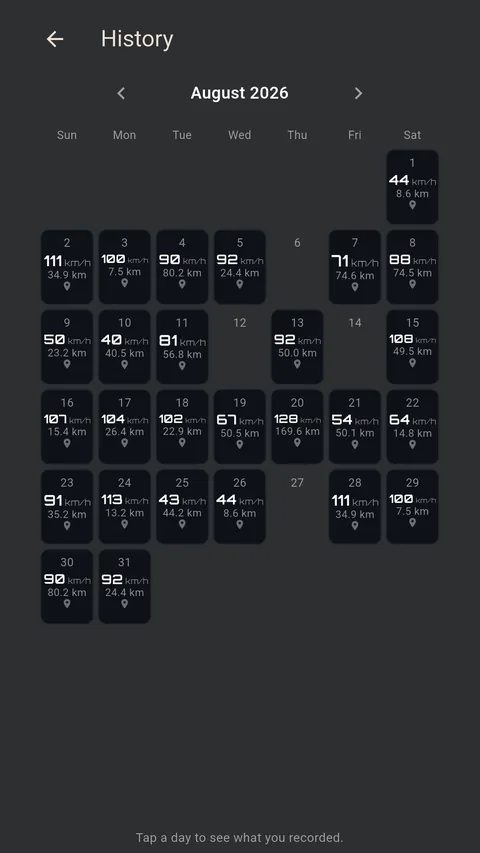
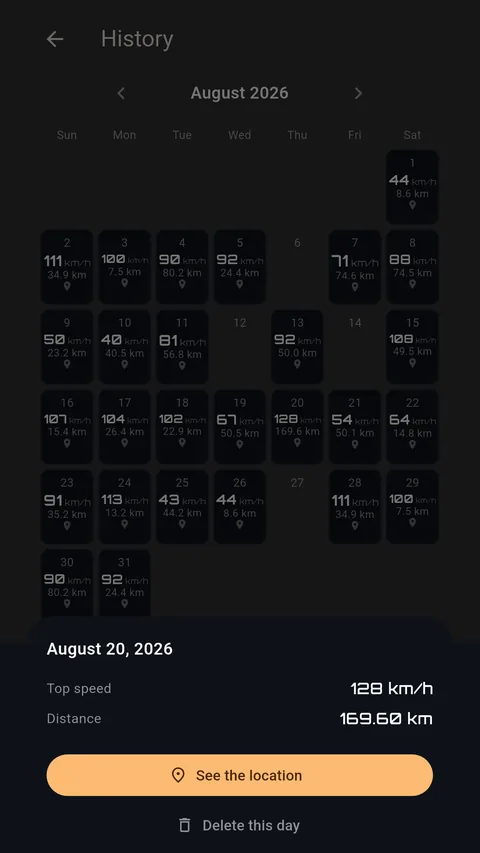
The only location recorded is the point at which the day’s top speed occurred. The route travelled is not recorded. "Show location" displays it on a map.
Records are stored on the device only and are never sent to our servers. Individual days, or all records, may be deleted from the history screen and the settings. Should you export your calendar under "Moving your data", you can send that file — the coordinates included — wherever you choose; see Moving your data below.
Under Data in the settings, the total may be set by entering a figure or reset. Use this to match the odometer of a vehicle.
A reset returns both the total and the trip to zero and cannot be undone. The history calendar is not affected.
Your ride log — the history calendar — is not part of Google’s cloud backup, because it contains location data. A cable or a direct transfer carries it across to the new phone as it is. Only a restore from the cloud leaves it behind.
The total distance (ODO), the peak speed (PEAK) and every setting are not location data, and come across either way.
Both are under Moving your data in the settings. Export ride log opens the share sheet; choose where it should go. Sending it straight to another phone with a nearby-device share, saving it as a file, or sending it by cloud drive or email all work.
On the receiving phone, choose Import ride log and pick that file. The number of days taken in is then shown.
Importing the same file twice is safe. Days are merged by taking the higher of the two values, so nothing is ever counted again.
The exported file holds each day’s top speed and distance, and the coordinate where that top speed occurred. You choose where it goes, so please handle it with that in mind.
Speed display, total distance, trip, the history calendar, unit switching and the over-speed chime may all be used free of charge.
So may the speed the chime sounds at, Real mode, Keep running in the background, each meter’s top-of-scale speed, the dark and light themes, and exporting and importing your ride log.
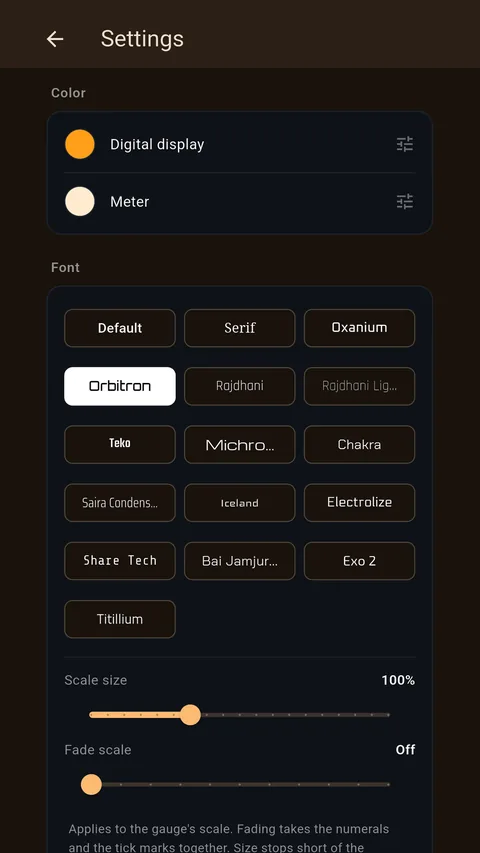
The six remaining meter faces and the appearance settings are the paid features: colours for the readout and the meter, the dial’s typeface, the size and weight of the scale numerals, and the background and dial textures (none, carbon, grid, dots, brushed).
Payment is made once only. There is no monthly charge.
The app contains no advertising.
Check that location services are switched on and that the app has been granted location permission. Positioning is not possible indoors or in tunnels. Try again where the sky is open.
GPS positioning carries a degree of error, so slight movement may be shown while stopped. Variation is greater where the view of the sky is poor, such as among tall buildings.
Vehicle speedometers are designed to read several km/h above the actual speed, as regulations do not permit them to read below it. This is not a fault. A GPS measurement is the closer of the two to the actual speed.
The actual speed is above the full-scale speed that has been set. Change it in the settings. The digital readout continues to show the actual speed.
Operation may have been stopped by the power saving function of the device. Refer to the over-speed chime section.