

LR Appli
← All apps

GPS SpeeeeedGPS speedometer

An app that shows your real GPS speed on an instrument that matches how you are travelling.

Choose a meter modelled on the instruments of a car, bicycle, Shinkansen, aircraft or ship, and see your current speed on it. Your location is processed on the device and never sent to our servers.

Get it on Google Play Now on Android Free to try, no ads

Features

01

Real GPS speed

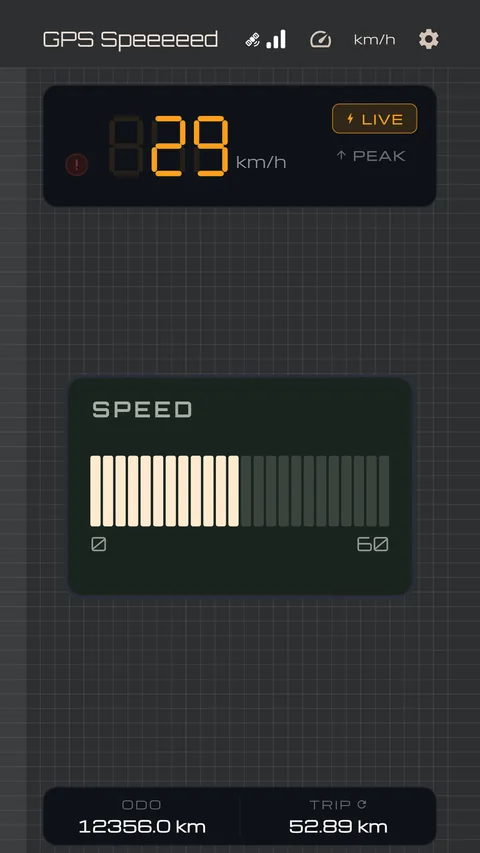
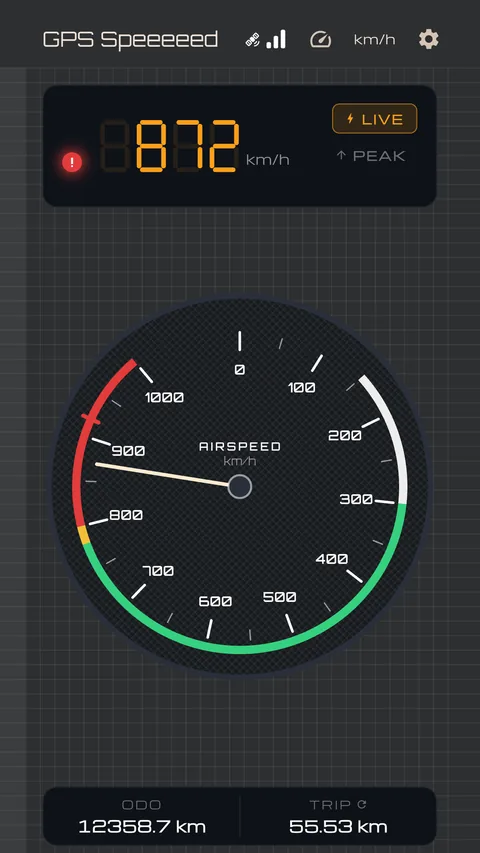
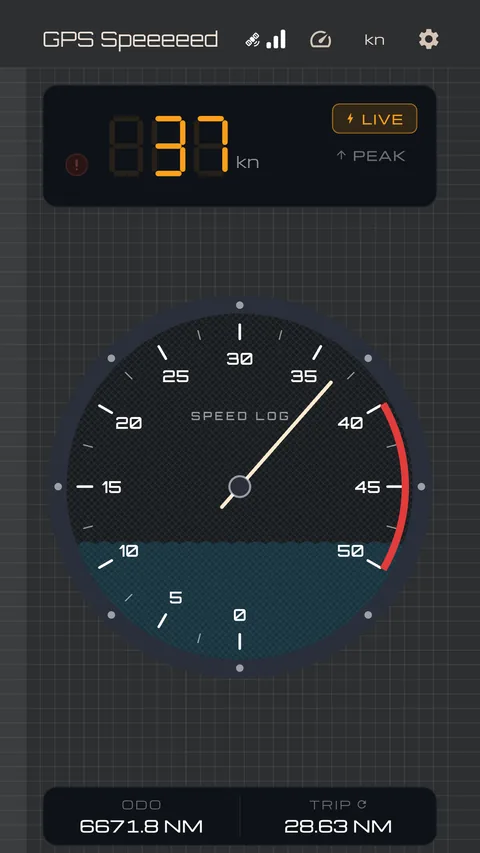
Speed measured from GPS. Switch between eight designs: analog car dial, bicycle cyclocomputer, Shinkansen ATC, aircraft airspeed indicator, marine speed log, and more. Works in km/h, mph, knots and min/km (pace).

02

Overspeed chime

Recreates the speed-warning chime once fitted to Japanese cars. It sounds when you go over the speed you set. Real mode rings it at a quicker, true-to-life tempo that recalls the cars of the day.

03

Trip & peak records

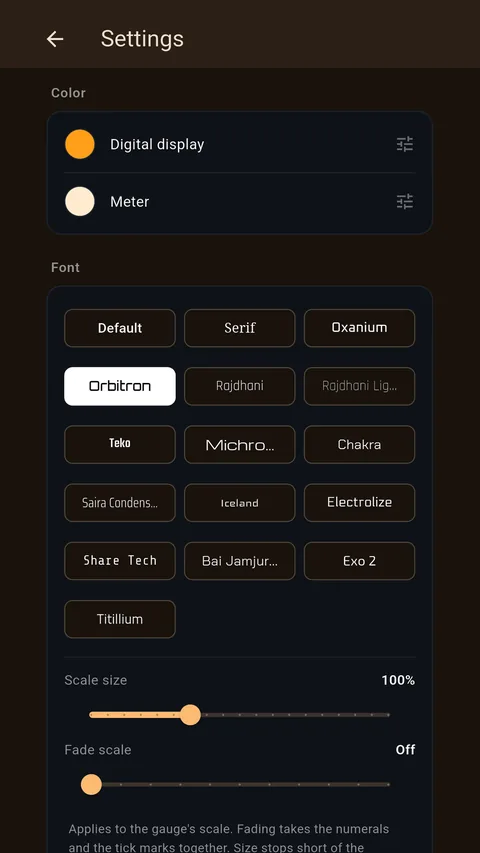
Tracks distance travelled and top speed, with a calendar of the days behind you. Dark and light themes are free; customizing colors, type and textures comes with the one-time purchase.

Screens

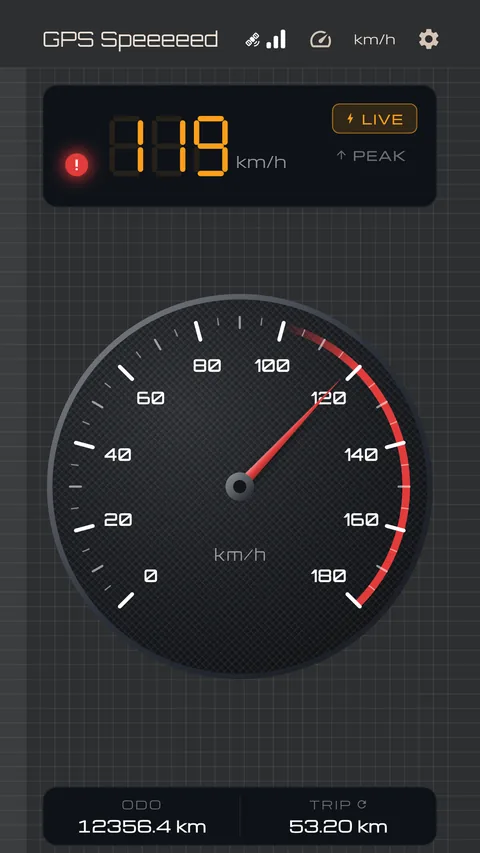
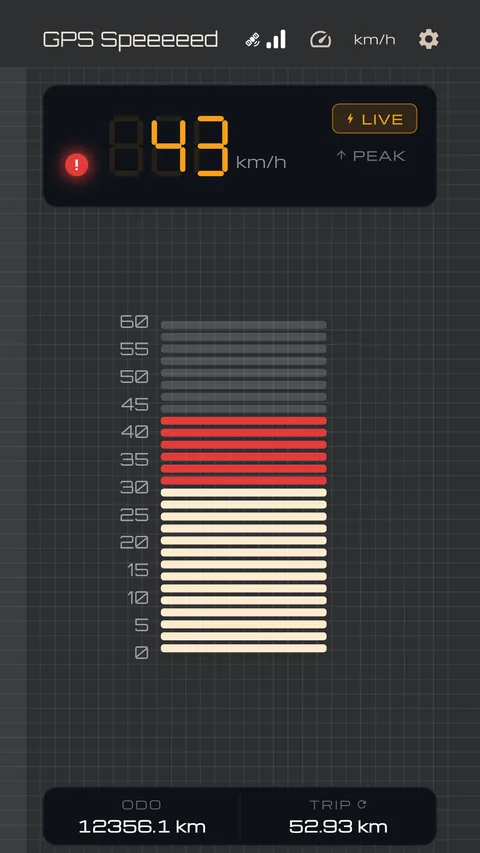
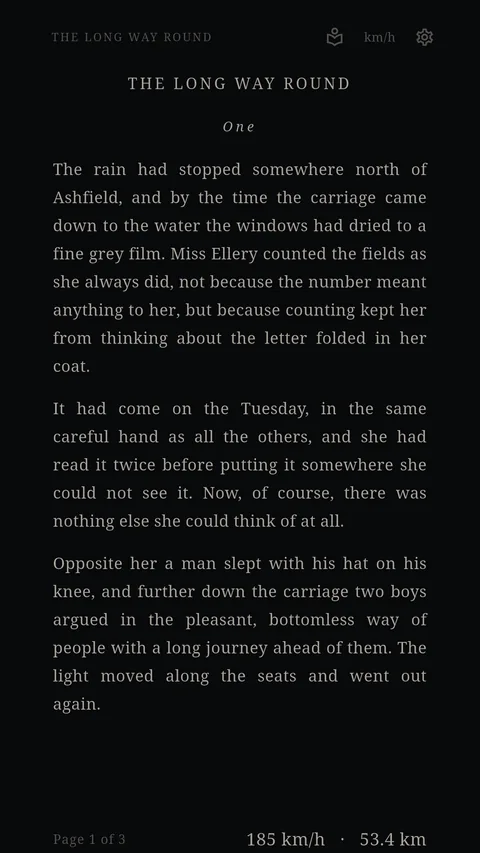
The analog car dial and the LED bar stay free to use. "Paid" marks what the one-time purchase unlocks.

Analog car dial
01 Analog car dial
Digital LED bar
02 Digital LED bar
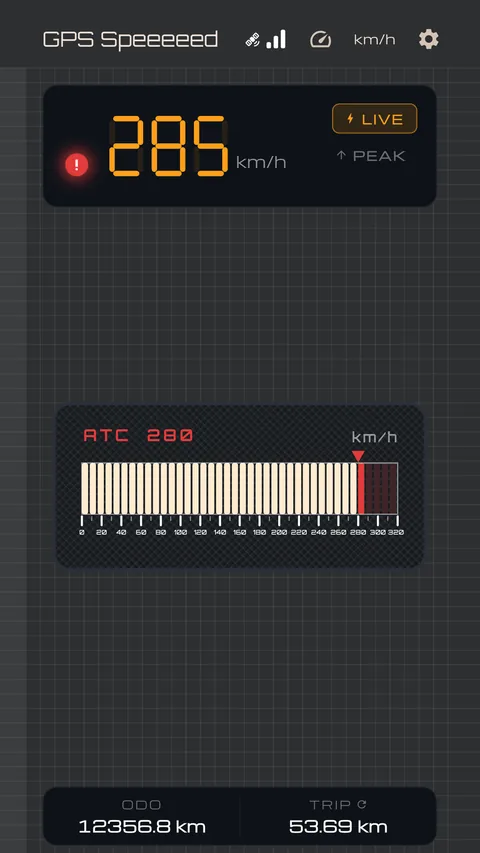
Shinkansen ATC indicator
03 Shinkansen ATC indicator
Bicycle cyclocomputer
04 Bicycle cyclocomputer
Aircraft airspeed indicator
05 Aircraft airspeed indicator
Marine speed log
06 Marine speed log
Ring, digital
07 Ring, digital
Discreet mode, as a book page
08 Discreet mode, as a book page
Colors and fonts
09 Colors and fonts

These screens were captured in demo mode. The app is updated from time to time and may look different.

Sound

The chime in the app is a recording of a real warning bell, not a synthesised imitation.

From 1974 to 1986, every car sold in Japan was required by law to carry a speed warning device. Past roughly 105 km/h — 85 for the smaller kei class — a bell behind the dashboard started to ring, and went on ringing until you slowed down. Every car of that period had one.

The requirement was struck out in March 1986. A fitting unique to the Japanese market had been named a barrier to trade, and a monotonous alarm was argued to leave drivers drowsy. The chime left new cars soon after. It lingered a while as an option and went on ringing in used ones, but no car sold today comes with it.

Filmed with the actual part taken apart, so the mechanism inside is visible.

FAQ

Reading the screen and what each setting does are covered in the user guide. There is also a video walkthrough on YouTube (in Japanese).

The speed shown differs from my car's speedometer.

By regulation, vehicle speedometers are designed to read slightly higher than actual speed. This app shows the real speed calculated from GPS, so a lower reading than your car’s dial is normal.

Note that GPS accuracy drops — or measurement stops temporarily — in tunnels, among tall buildings, and in mountainous areas where reception is poor.

The speed will not settle at zero while I am stopped.

GPS can report a few km/h even at a standstill, because the fix itself wanders. So that the wander is never mistaken for pulling away, the app holds the reading at zero until a departure is unmistakable. On top of that, when the figure GPS reports is smaller than the error bar GPS itself puts on it, the app does not treat it as evidence of movement. A parked car does not sit there showing a few km/h. There is nothing to configure.

Alongside that, when the phone is not being shaken at all, stop snap keeps the crawl GPS reports off the display. That one is for a desk and other places without vibration; in a car, where the engine and the road come through, it does not apply — mistaking a car creeping through traffic for a stopped one would leave the reading at zero while you were genuinely moving.

Both apply at low speed only. Above that, the GPS reading is shown as measured.

What happens to speed and distance inside a tunnel?

When GPS drops out, the app eases down from your last speed over a few seconds and keeps counting distance in the meantime (coast through outages). This is what stops the needle from slamming to zero, and it is always active.

If reception does not return within a short window, the reading falls to zero. In a long tunnel, speed and distance may differ from reality.

Can I use mph or knots?

Yes. km/h, mph, knots and min/km (pace) are all supported, and you can switch with the button at the top of the screen. The distance unit follows.

The top of the dial is a round number in whichever unit you use, rather than a converted one.

min/km (pace) is not an instant reading. It is your average pace since the last reset — the distance actually covered over the time actually spent moving — and time spent below 1 km/h is not counted. Until you have covered any ground it reads "--:--".

In this unit only, a RESET button appears near the foot of the screen. Pressing it clears the trip distance and the average pace together, so the average starts again from there.

Can I turn the warning chime off?

Yes. The settings screen lets you turn the chime on or off, and set the speed it sounds at. You can also set the speed on the meter itself: press and hold the dial, then slide along the scale. All of it is free.

The chime sometimes sounds different from usual.

That is deliberate. In the cars this recreates, the chime did not always ring out cleanly at the moment the speed dropped back under the one you had set.

Nothing is wrong with the app. Carry on using it as it is, and enjoy the period detail.

Can the chime ring at a quicker tempo?

Turn on "Real mode" under Overspeed chime in the settings, and the chime rings at a quicker, true-to-life tempo that recalls the cars of the day. The gap between the two notes is closed up to match it too.

With it off, the chime keeps the slower tempo the app has always used. Both are free.

Can the app keep measuring while I use another app?

Turn on "Keep running in the background" under Background in the settings, and GPS keeps measuring while another app is on screen. That is what lets the chime sound over your navigation app, or a trip keep adding up while you follow the map.

With it off, measuring stops about a minute after you leave the app.

While it runs, a notification stays in the status bar. Android requires this and it cannot be dismissed. Turning the feature off removes the notification too.

I got a notification saying "Still measuring".

That is the reminder for leaving "Keep running in the background" on: it appears when you have not moved for over 10 minutes, so that GPS does not keep draining the battery after you have parked and walked away.

Pressing Stop on the notification ends measuring there and then. The setting stays on, so opening the app again brings everything back. Pressing Keep running carries on and stops asking.

If you press neither, measuring stops on its own ten minutes later. The setting is not turned off.

The chime stops working in the background.

Your phone's power management may be stopping the app from running in the background. This app uses a foreground service as Android requires — the kind that shows a notification you cannot dismiss — but on some manufacturers' phones it is stopped anyway once the screen goes off.

Exclude this app from power saving in your phone's settings. The names differ by phone and Android version. On Galaxy (One UI), set Apps → this app → Battery to Unrestricted, and remove it from Device care → Battery → Sleeping apps. On OPPO, Realme and OnePlus (ColorOS), allow background running and auto-start. On Xiaomi (MIUI / HyperOS), allow Autostart and set the battery saver to No restrictions. On Pixel and stock Android, Apps → this app → Battery → Unrestricted.

The app also tells you at the next launch when it detects that this has happened.

I am concerned about battery usage.

Because GPS is used continuously, the app consumes more power than a typical app. For longer sessions we recommend using a car charger.

I changed phones and only the history calendar did not come across.

That is how it is meant to work. Your ride log contains location data, so it is deliberately excluded from Google’s cloud backup — we would rather not put a record of where you have been onto a server on your behalf. A cable or a direct transfer between phones carries it across as it is.

After a restore from the cloud, you can move it yourself under Moving your data in the settings: Export ride log on the old phone, Import ride log on the new one. A nearby-device share passes it straight between the two.

The total distance (ODO), the peak speed (PEAK) and every setting are not location data, so they do come across from a cloud restore. That is why the calendar was the only thing missing.

How is my location data handled?

Location data is used to calculate speed and is never sent to our servers. Your route is not recorded. For the history calendar, one coordinate per day — where you hit that day’s top speed — is stored on the device.

That coordinate leaves the device only when you ask it to, and there are two ways to ask. Pressing "See the location" on a day in the history hands that single point to your maps app. And under "Moving your data" you can export your calendar to a file, and send that file — the coordinates included — wherever you choose: a nearby device, your own files, a cloud drive, an email. Neither happens unless you ask for it. See our Privacy Policy for details.

Is it safe to use while driving?

Looking at a screen while driving is prohibited by law. This app is intended as a driving aid and is not a replacement for your vehicle's built-in instruments. Please mount your device securely and avoid operating or watching it while the vehicle is in motion.

How much does it cost, and are there ads?

The app is free to download. The analog car dial and the LED bar stay free, along with the speed, the distance, the history calendar, the unit switch, each meter’s top-of-scale speed, the dark and light themes, the warning chime and the speed it sounds at, keeping the app running in the background, and exporting and importing your ride log. Nothing about measuring is held back.

A single in-app purchase unlocks the other six meter faces and the way the app looks: colours, the dial’s typeface, the size and weight of the dial numerals, and the texture of the background and the meter face. It is not a subscription, so nothing further is ever charged.

There are no ads. Please see the Google Play listing for the current price.

Story

A car speedometer app I had used for years was discontinued, so it seemed to me that the thing to do was build its replacement myself. I built it for me.

Somewhere along the way it became something I thought anyone else left looking for a replacement might want, so I put it on the store. Everything to do with measuring — the speed, the distance, the calendar — is free. There is a purchase, and what it unlocks is more faces to look at. If the app earns its place on your dashboard, buying it is a kind way to say so.

Questions that apply to every app — supported devices, payment — are collected in the FAQ on the top page. If yours is not answered, please reach us through the contact form.

Contact form
LR Appli
← {{ t.back }}

GPS Speeeeed{{ t.appSub }}

{{ t.appLede }}

{{ t.appDesc }}

{{ t.appGet }} {{ t.appGet }} {{ t.appStatus }} {{ t.appBadge }}

{{ t.secFeatures }}

01

{{ t.feat1h }}

{{ t.feat1p }}

02

{{ t.feat2h }}

{{ t.feat2p }}

03

{{ t.feat3h }}

{{ t.feat3p }}

{{ t.secShots }}

{{ t.shotsLead }}

{{ shot.cap }}
{{ shot.no }} {{ shot.cap }}

{{ t.shotsNote }}

{{ t.secBell }}

{{ t.bellLead }}

{{ t.bellHistory1 }}

{{ t.bellHistory2 }}

{{ t.bellCaption }}

{{ t.secFaq }}

{{ t.faqManual1 }}{{ t.faqManualLink }}{{ t.faqManual2 }}{{ t.faqVideoLink }}{{ t.faqVideo2 }}

{{ item.q }}

{{ item.body }}

{{ t.secStory }}

{{ t.story1 }}

{{ t.story2 }}

{{ t.cs1 }}{{ t.csLink }}{{ t.cs2 }}

{{ t.contactBtn }}